Sending a campaign
Follow the guide below to send a campaign using a template in Campaigner.
This includes instructions to send a campaign from members who were not included in the original deployment of a campaign.
Step-by-step guide
- Log in to Campaigner.
- Click on the `Campaign templates` menu item.
- In order to send a campaign, you will have to have previously created a campaign template and had it approved.
- Find the template you wish to use. The option to generate a member campaign will be available from the record actions on the left (as long as it is approved);
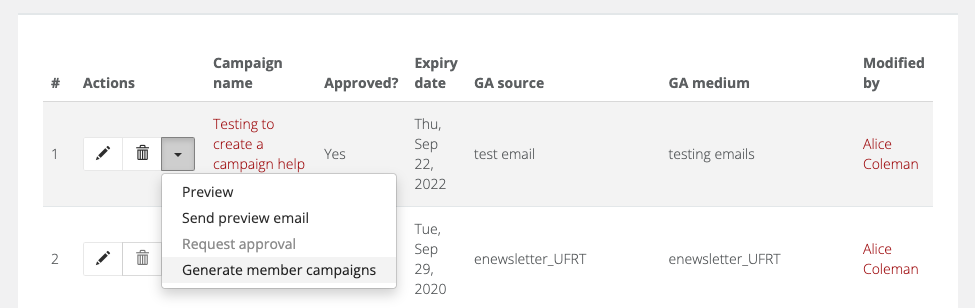
- Select the members you wish to be involved in the campaign and click 'generate campaigns now'. This will create a campaign for the selected members and send an email to notify them a campaign is there for approval. This is what that email looks like;
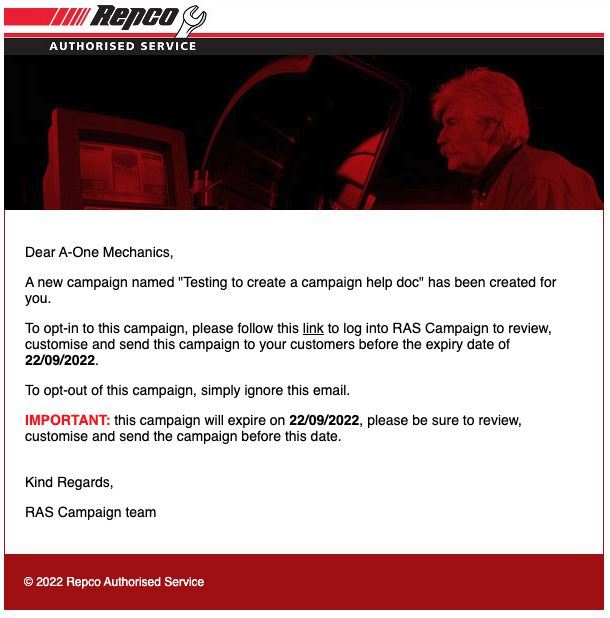 Please note that a campaign will not be sent until the member approves it, this must be completed before the expiry date listed in the email (set on the campaign template).
 - To view all the campaigns you have created, navigate to the Campaigns page using the top left menu. Locate the campaigns you have just created by sorting the records by 'modified on' descending.
- There are some record actions available to the left of the campaign name, should you need them to assist the member in the event something doesn't work properly;
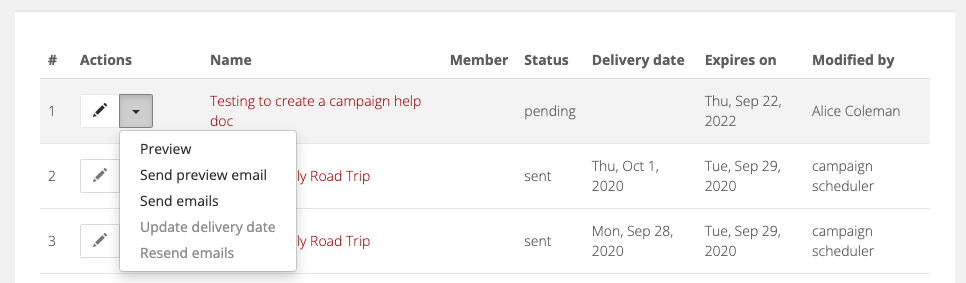
- You can preview a campaign to see a member's personalised content.
- You can send a preview email to any email address to test it.
- You can send the campaign for the member.
- After a member has approved a campaign you can update the delivery date for them.
- After an email has been sent, you can re-trigger the sending process if there has been an issue with sending in the first instance.
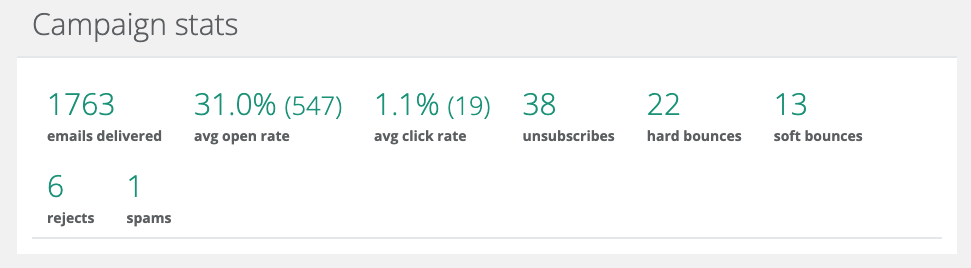
- Once a campaign has been sent you can click on the name of that record to view the stats for that email. A member will also have access to this data within their Campaign portal (keep in mind these stats will grow over time as there is more interaction with the campaign;
 Please note that a campaign will not be sent until the member approves it, this must be completed before the expiry date listed in the email (set on the campaign template).
Deploying a campaign after the original creation
There are times you might want to add new members to an existing campaign that has already been deployed. This is entirely possible as long as it isn't expired. Follow these steps;
- Click on the Campaign templates menu item.
- Find the template you wish to reuse. Click the option to generate a member campaign from the record actions on the left. Select any new members you wish to create the campaign for (you will see the members who previously had the campaign created for them are still selected but greyed out) and click 'generate campaigns now'.
- Continue the process from step 5 above. The campaign will not be re-generated for any members included in the previous campaign creation.