Updating email images in Campaigner
This article covers using images in Campaigner from two perspectives:
- Member header images
- Campaigner template body images
Member header images
Campaigner allows each member to have their own unique header and footer images in their email templates. This article details how to set up images for member's campaigns.
Understanding email images
Header images are saved in AWS as a JPG, from which they are accessed via a special URL. Campaigner contains all the data required, including the URL of the AWS email images (specific to each member) and the functionality to send email campaigns.
Adding email header images to campaigner
- Log in to Campaigner.
- Navigate to the Members model.
- Select the member you wish to add/edit images for.
- Add the name of the files you uploaded to AWS (using the uploading images to AWS steps) in the header image URL and footer image URL fields.
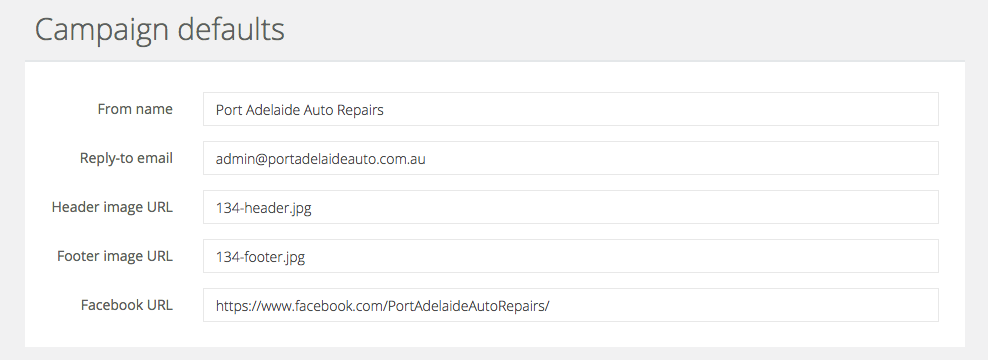
Note: If you replace an old image in AWS with a new image of the same name, you will not see the new image in Campaigner automatically as the system takes 24 hours to invalidate old images.
Campaign template body images
Campaigner allows you to place an image in the body of a campaign template. This guide shows you how to do this.
Please note: before doing this, you should upload your images to AWS (using the uploading images to AWS steps).
- Log in to Campaigner.
- Navigate to the Campaign templates model and either create a new template or edit an existing template.
- Locate the Body content section, and click the image icon to insert an image.

- In the Image Properties popup, enter the URL of the image you uploaded to AWS (making sure it starts with https://)

- Click OK.
- The image should now appear within the body text.