Creating a campaign template
Follow the guide below to create a campaign template in Campaigner.
Step-by-step guide
- Log in to Campaigner.
- Click on the `Campaign templates` menu item.
- Click on the `+ Create a new campaign template` button to begin.
- Enter the campaign details, everything marked with an asterisk is mandatory.
- You can follow these guides for adding a header image to the campaign;
- Once you are happy with your content, save the campaign.
- Navigate back to the campaign template index page, from here you can do the following from the record actions by clicking on the down arrow to the left of the campaign name;
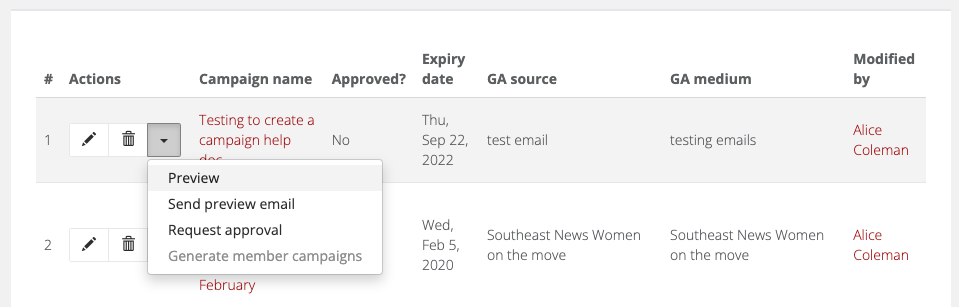 Preview the campaign template.
- Send a preview email, to test if the email looks good in all email clients and browsers.
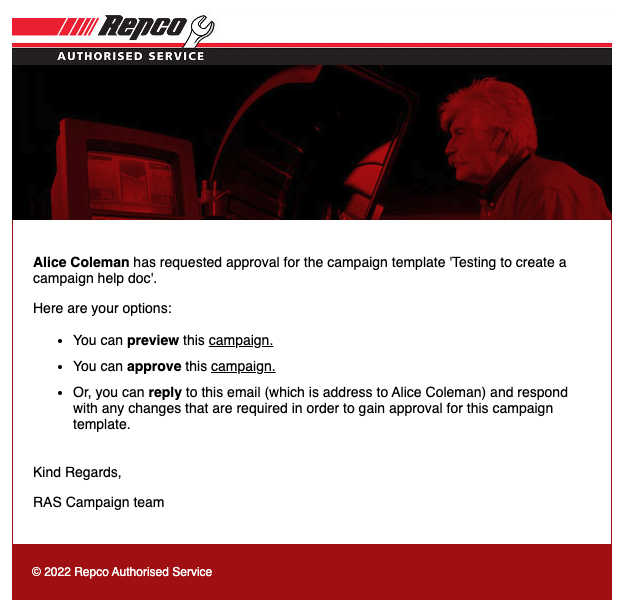
- Request approval of the template, approval is required to enable you to create a campaign from that template. The email going to the approver looks like this;
- Once you are happy with the campaign template and it is approved, you can then follow the guide to sending a campaign to complete the process. The option to generate a member campaign will be available from the record action once it is approved;
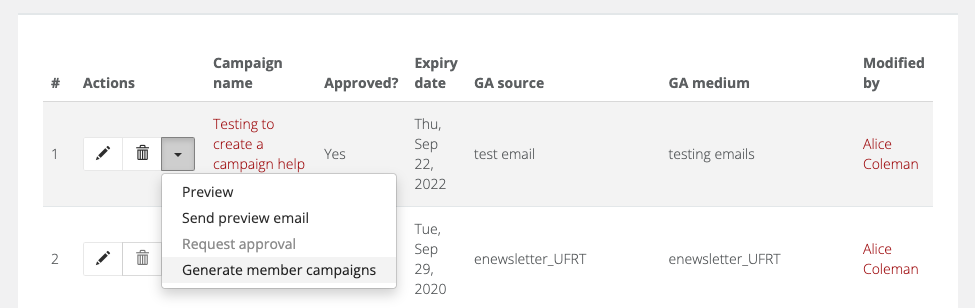
 Preview the campaign template.
