Inserting dynamic member website links
Follow this guide to dynamically insert the merge field Member website URL into the campaign content.
Merge Field Definition: Member Website URL
This merge field is a dynamic personalization field used to insert the unique Member Owned Website (MOW) address into campaign body content. When the email campaign is sent out, the system looks up the individual recipient and replaces the field with their corresponding MOW URL (e.g., https://www.caronewoolloongabba.repcoservice.net/ ).
Use Case
The field is mandatory when the Marketing Team wants to direct campaign traffic to the local, specific website of the recipient's chosen.
Implementation Example (HTML)
This field must be placed within the href attribute of an anchor tag (<a> ) inside the campaign template's HTML editor:
<a href="{{business_url}}">
   Visit our website here.
</a>
Note: If a Member's profile is missing the MOW URL, the rendering engine must replace the tag with the designated system fallback URL (typically the main RSC site).
Step-by-Step guide
- Log in to Campaigner.
- Click on the
Campaign templatesmenu item. - Click on the
+ Create a new campaign templatebutton to begin. -
Enter the campaign details, everything marked with an asterisk is mandatory. In the Campaign Content section, click on the
<p>Sourcebutton, you will go into the HTML edit mode. insert the link by placing thehrefattribute of an anchor tag<a>. Please referred to the format above in the Implementation Example.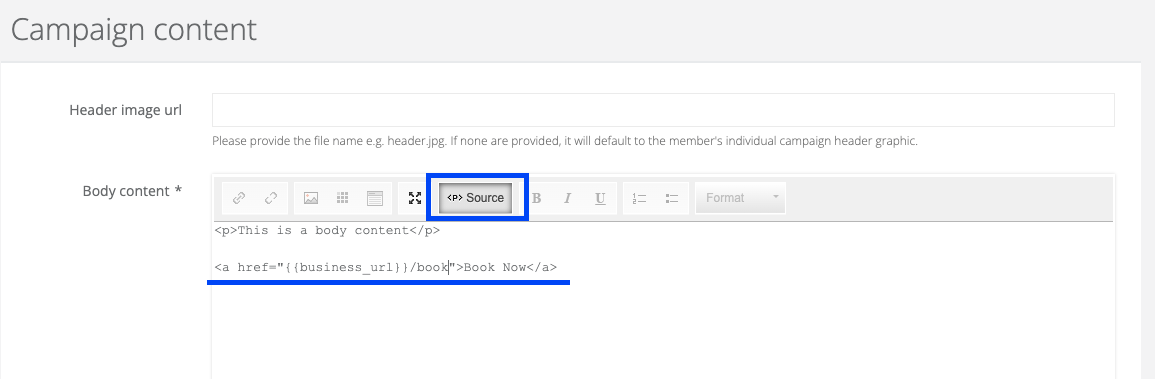
- Once you are happy with the campaign template and it is approved, you can then follow the guide to sending a campaign to complete the process. The option to generate a member campaign will be available from the record action once it is approved.
