Saved filters
This article will help you become familiar with how to create and use saved filters and more, here is a list of what you can find;
Create a saved filter
Create an update notification for specific members
Using saved filters
Replace a saved filter
Handy tips
Goal
Easily access filtered views of data or be notified when members who meet specific criteria are updated.
Understanding saved filters
The saved filters feature has two main functionalities:
- Save your current filter settings so that you can quickly reload the settings when you revisit MMS.
- Subscribe to be notified of a member update for members in your saved filters.
There are 2 types of saved filter you can create:
Generic saved filter
After filtering the MMS results you can simply save that filter, under the name of your choice so you can access it again in future.
Member change notification filter
When you create a new saved filter you can optionally register for an email notification to receive change updates for members in your saved filter.
Create a new saved filter
- Login to MMS.
- Navigate to the members model.
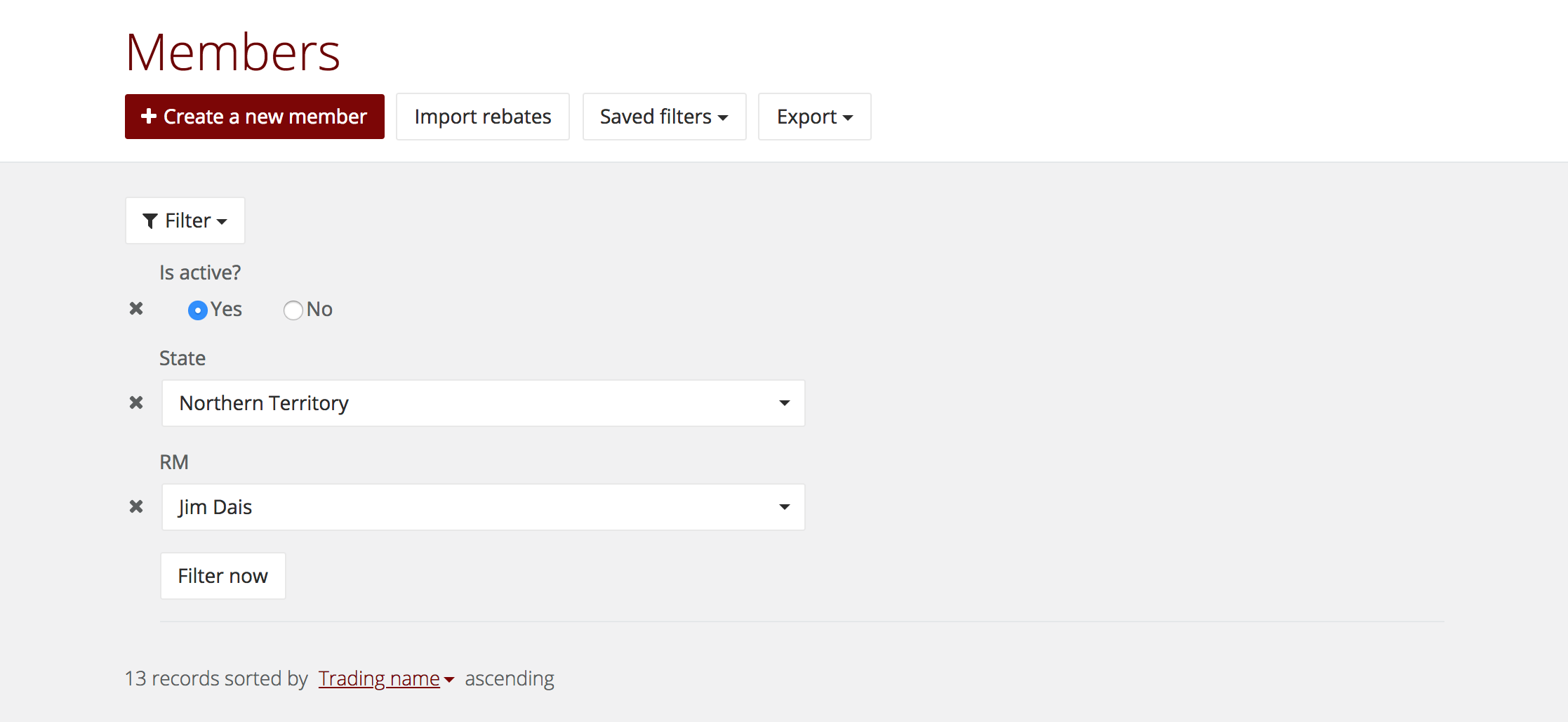
- Set the filter settings you require. Below is an example of the filter settings that brings back all active members, managed by Jim Dais and based in the NT.
- Select filter now.
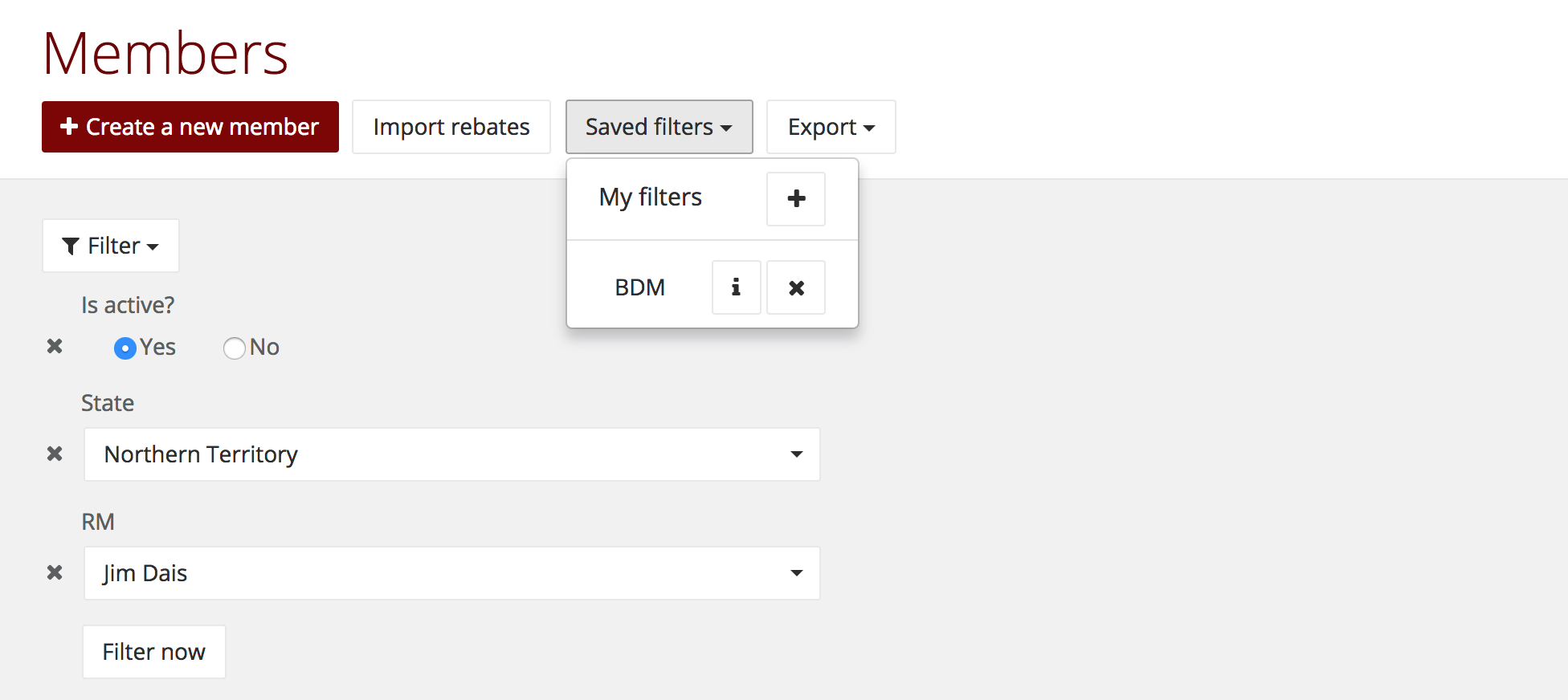
- To save the filter, click saved filters and select the + next to my filters.
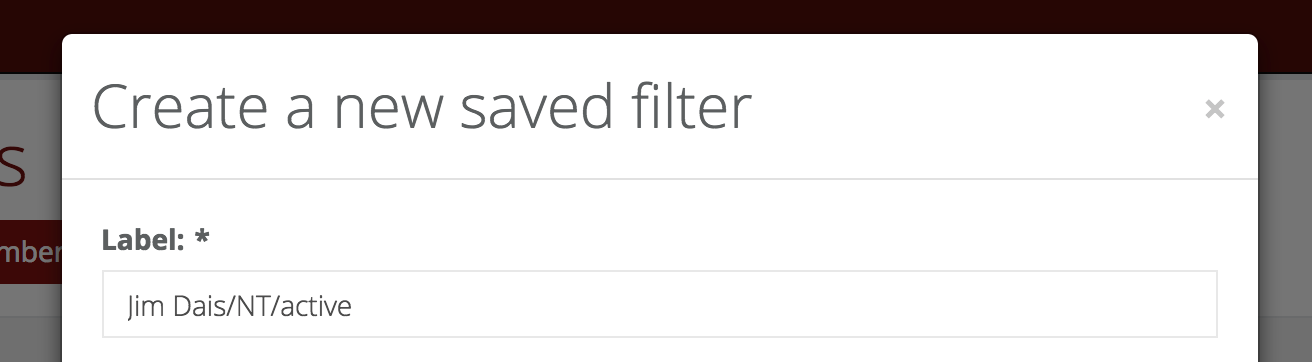
- A pop-up box will prompt you to enter a name for the new filter.
- Create the filter.
Create an update notification for specific members
If you would also like to receive notification about changes to some member records you can also do this using the saved filters.
- Before you save the filter select the areas you would like to be notified about if they are changed.
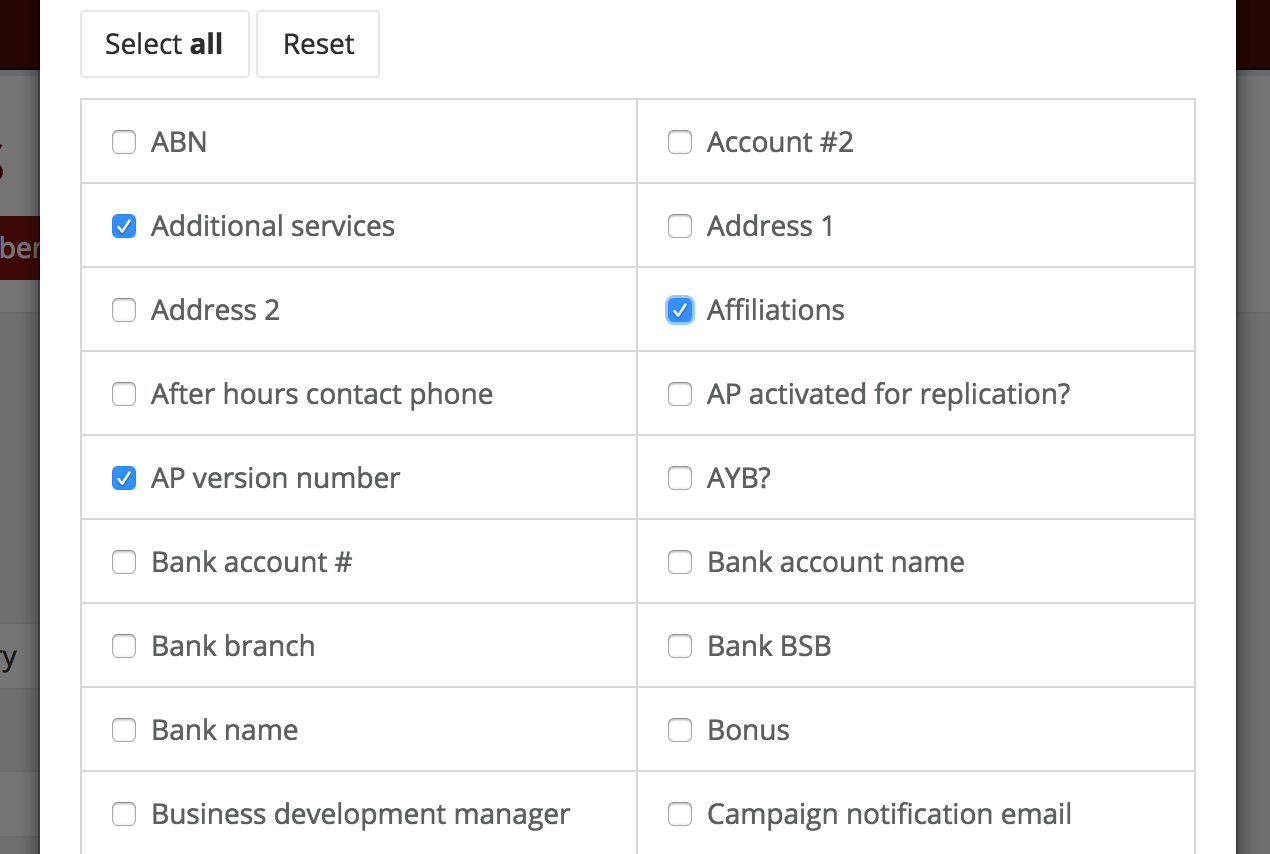 Based on the saved filter settings in the example, this user will receive a change notification if the following conditions are met:
- There’s a property change to one of Jim Dais’ active NT members.
- The property change is made to the additional services, affiliations or AP version number.
- The change was not made by this user.
Please note: You can skip the member change notification settings if you do not wish to receive these emails.
- Create the filter.
 Based on the saved filter settings in the example, this user will receive a change notification if the following conditions are met:
Use a saved filter
Once you have created your saved filter, you can view it under saved filters and do the following with it;
- Load the saved filter by clicking on the saved filter label.
- Inspect the details of the saved filter by clicking i.
- Delete the save filter by clicking x.
Please note: If you load your saved filter while you have other filter settings, it will replace your current filter settings with the settings from your saved filter.
Replace a saved filter
To update an existing saved filter you will have to replace it with a new one;
- Load the filter you want to update by selecting it from your saved filters.
- Update the filter selections if required.
- To save the filter, click saved filters and select the + next to my filters.
- Enter the saved filter label (this can be the same label as the one you want to replace).
- If you have at least one saved filter in your profile you will see an additional option “Would you like to replace one of your saved filter below with this new one:”, select the filter you want to replace (see example image below)
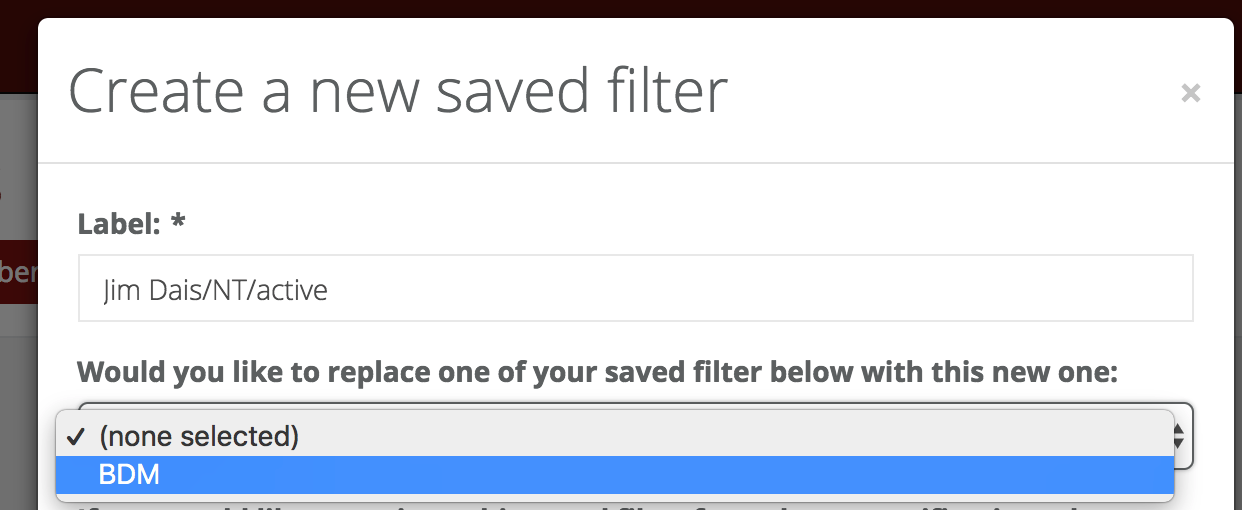
- Select your member change notification properties if required.
- Create the filter. This will replace your existing saved filter.
Handy tips
- You can create multiple saved filters.
- If you have multiple saved filters that contain the same members, you will only receive one notification email for each member update.
Watch out for this...
The member change notification function is based on your saved filter settings. If one of your saved filters contains a filter for a member property that changes you will not receive an email. Consider the following example;
You created a saved filter to get notifications for changes to Victorian members. If the state property of a member has changed from Victoria to South Australia, you will not receive an email notification for that particular change. This is because your filter settings will only capture members that are based in Victoria since the member is no longer in Victoria, you will cease to receive any email notifications for changes to that member.
If capturing every member's property change are critical to you, you can create your saved filter based on member properties that can’t be changed e.g. member code.