Create an affiliate site
Step-by-step guide
To deploy a new affiliate member website follow these steps in order;
- Edit the member record in MMS.
- Retrieve the canonical domain for the website from Chassis.
- Update the member record in MMS with the canonical domain.
- Create a Route53 record in AWS.
- Check the DNS is properly configured.
- Request an HTTP certificate.
Edit the member record in MMS
- Login to MMS.
- Edit the member record for which you would like to create the affiliate site.
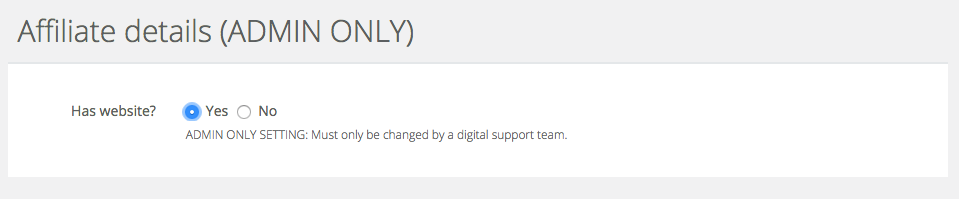
- In the Affiliate details section update Has website? to Yes.
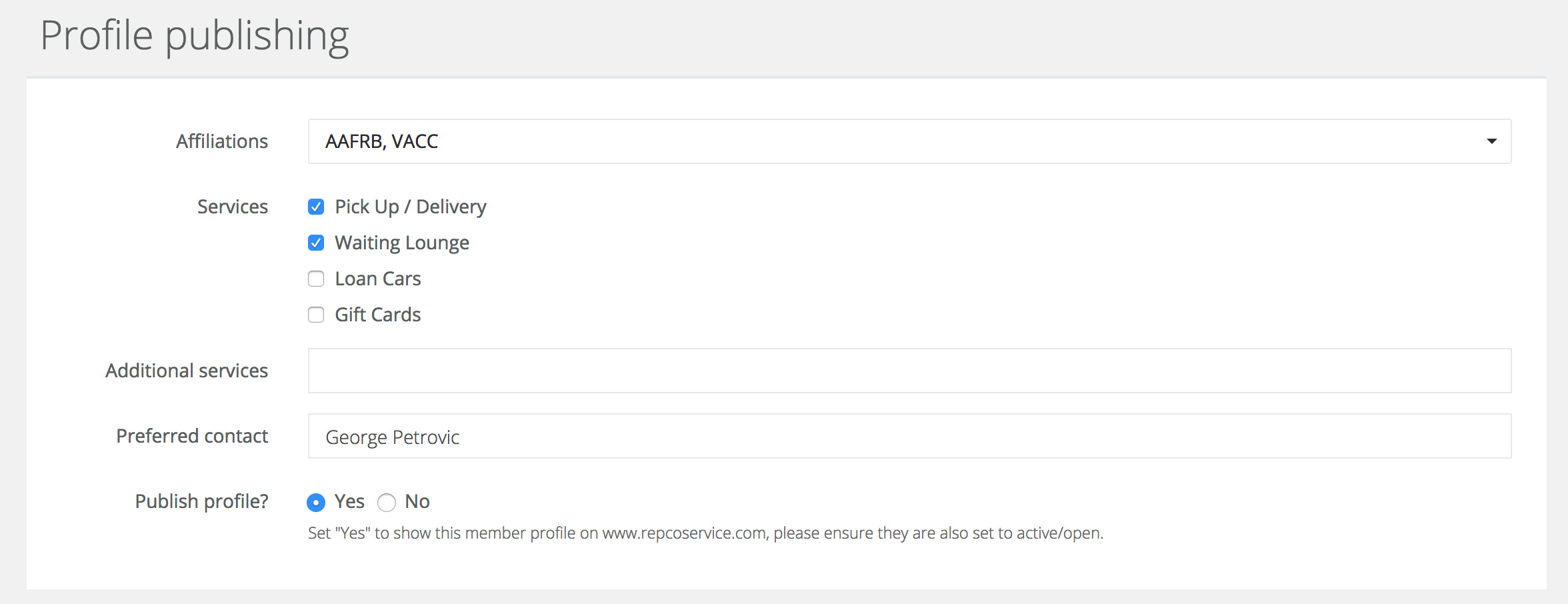
- In the Profile publishing section set Publish profile? to Yes.
- Save the record.
Retrieve the canonical domain from Chassis
- Login to Chassis.
- Click on the Websites menu item.
- Filter the website record to find the website for the member you need to create a website for.
- With the member located copy the value of the Canonical domain field.
Update the canonical domain in MMS
- Login to MMS.
- Find the appropriate affiliate member record and edit it.
- In the Website details section add the canonical URL value copied into the Website domain field.
- Save the record.
Create a Route53 record
- Login to AWS.
- Search for Route 53 in the services and visit it.
- Click on the 1 hosted zone and select repcoservice.net.
- Click on Create record.
- Create a new CNAME record using the value from the Canonical domain field in Chassis. Set it up like the following example
- To create the new CNAME record use the value from the Canonical domain field in Chassis. Use the following as a guide;
Record name:
Enter the subdomain (i.e. untypical-affiliate).
Record type:
Choose CNAME.
Value:
Enter the {subdomain}.repcoservice.net.c.section.io.
TTL:
300
Routing policy:
Simple routing - Click Create records to save.
Notes:
1. The value is always `{memberName}-affiliate.repcoservice.net.c.section.io`
For example, if the member name is Redhead Automotive Centre then the value is: `redheadautomotivecentre-affiliate.repcoservice.net.c.section.io`
2. Important: please leave an hour before continuing. This will allow the DNS to propagate and ensure the Let's Encrypt cert can be acquired in a timely fashion.
Info: An affiliate member record must be active and must have Has website? set to `yes` in MMS for Chassis to create a website record for affiliate member.
Check the DNS is properly configured
- Login to Chassis.
- Click on the Websites menu item.
- Filter the website record to find the website for the member you need to create a website for.
- With the website located, click the drop-down menu in the Actions column.
- Choose Check DNS.
- If you can see a Yes in the DNS setup? column, you can continue. If you not, either give it more time or check the AWS set up to ensure everything is accurate.
Request an HTTP certificate
- Login to Chassis.
- Click on the Websites menu item.
- Filter the website record to find the website for the member you need to create a website for.
- With the website located, click the drop-down menu in the Actions column.
- Choose “Add domain”. Wait two minutes.
- Choose Request HTTPS certificates.
- Allow 5 minutes for Section to acquire the certificates (please note, this can sometimes take up 24 hours).
- Check everything is working by visiting the URL of the domain you've just setup, ensuring you're using
Custom domains
If an affiliate member has a custom domain follow these steps;
- Find the website record in Chassis under websites and edit.
- Copy the default canonical URL found under website details and save it (you will need to add this default canonical URL in domain list later).
- Update canonical URL with the custom domain URL.
- Now add the default canonical URL (from step 2) in the domains field and add it to domains list.
- Save the website record.
- Update the website URL of affiliate member in MMS with the custom domain.
- Create the CNAME record using the new canonical URL.