Create an announcement
Goal
Highlight important messages to members in a timely and simple, yet, effective way.
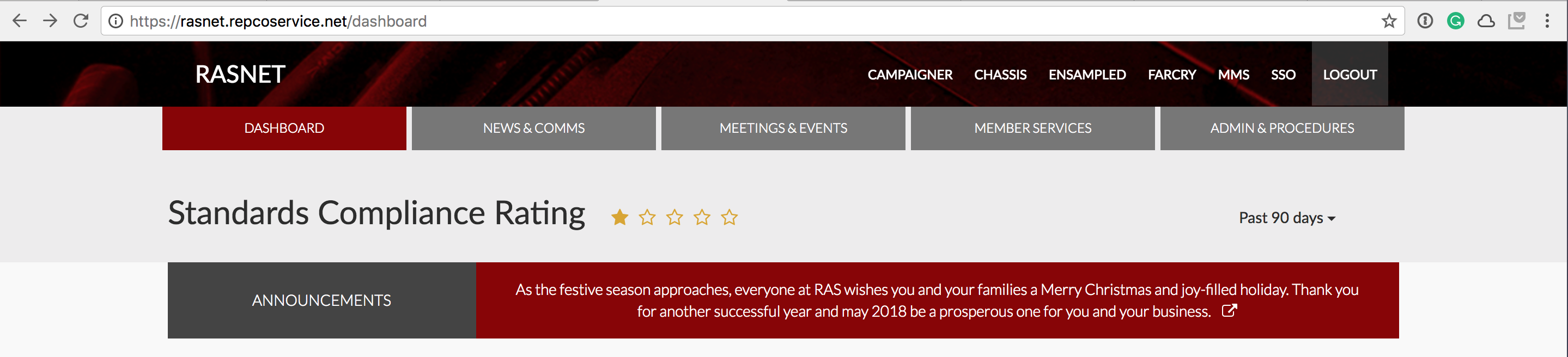
Example
Getting started
- Prepare your announcement message and the date range it should be visible for.
- Sign-in to RASNet.
- Navigate to announcements.
Create an announcement
- Add a title, this will not be visible on the announcement.
- Add the announcement content, this is the message that will be visible to the members.
- Provide a URL if necessary, it isn't required. If you do, an icon will appear at the end of the message allowing readers to follow-through to another web page.
- Add a publish on date, this is required.
- Add a remove after date, this is required.
- If you want to publish, select
yes. Only published announcements will become visible. - Save the announcement.
- Preview the announcement on the dashboard to ensure it looks correct.
Best practices and tips
- Try to keep your announcement as short as possible. Don't add formatting (e.g. enter spaces) that will make it overly big.
- Use links to other information to keep the announcement brief.
- Announcements can be used to highlight other communications on the RASNet dashboard e.g. events and anything from the communications centre.