Sending SMS reminders to members
Step-by-step guide
To send SMS reminders to members for events.
We use three tools to achieve this;
- MMS to gather the member mobile numbers
- Zapier to create, edit and send the SMS
- Google Sheets to define the numbers to be sent to
Export mobile numbers from MMS
- Log-in to MMS
- Navigate to members
- Filter the members to only include those you are targeting
- To export the member mobile numbers, in the 'choose fields to export' modal select 'SMS alert mobile number' and click export
NOTE: Not all members will have a mobile number assigned in the CSV generated, only those that have had them input in MMS.
Zapier set-up
Zapier is used to create relationships between different applications. It allows these applications to talk to each other and perform tasks as a result of what we program in Zapier. These automation tasks are known as Zaps and in this instance we are linking Google Sheets, which stores the mobile numbers to Twilio, which sends the SMS.
The Zap has been set up and is ready to use. All you will need to do in Zapier is update the SMS content, test it and when happy turn the Zap on.
- Log-in to Zapier using the email address invoice.ras@idearium.io and the password provided to you
- Navigate to the Google Sheets Delay Twilio
- In step 3: `Send SMS in Twilio`, open 'customise SMS' and edit the message you would like to send
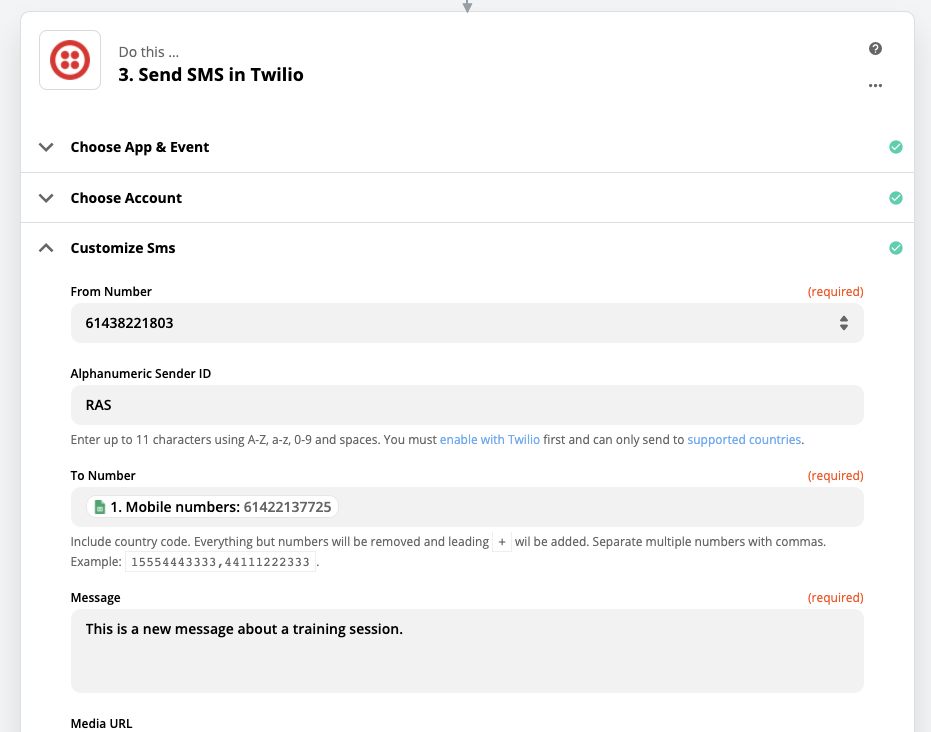
- Hit `done editing`
- Check the send data contains the testing mobile number in Google Sheets, do not continue with the test if the number is not your own as it will send an SMS. To adjust test data update the Google Sheet.
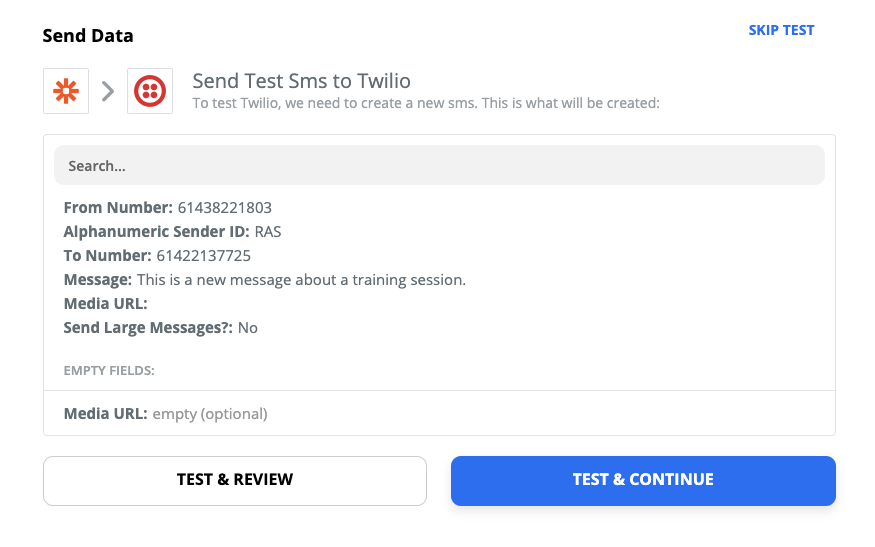
- Select 'test and continue'
- If you are happy with the result you can turn on the Zap
Google Sheets set-up
For this task we are using Google Sheets as the database of mobile numbers. The Zap will work on any new row added to the worksheet.
- Open the Google Sheet
- Add new rows to the 'mobile numbers' worksheet using the MMS export.
- To add a delay so the SMS will send at a scheduled time, add the time you want the SMS to be sent in the 'when to send' column in the Google sheet. The format must be like this '2020-08-27T08:45:00+10:00' (YYYY-MM-DD T HH:MM:SS timezone). The timezone needs to be replicated against every mobile number. If you leave the timezone blank the SMS will be sent in the next few minutes.
Running Zapier
You can see the task history to check progress.
At times, if you process many SMS at once Zapier will ask you to verify that it was you who requested all the tasks. Further steps will be provided on how to navigate this scenario when it happens.
Once the Zap is complete you should turn it off. This ensures no SMS can be sent if the spreadsheet is accidentally updated.